Mon Apr 27, 2026 · 1133 words
A few months back I noticed I was spending a lot of money, but I just had no good way to track where that money actually went other than manually going through my bank entries one by one. It was time to add some way of tracking finances so I can better look back and see what crap I wasted my money on.
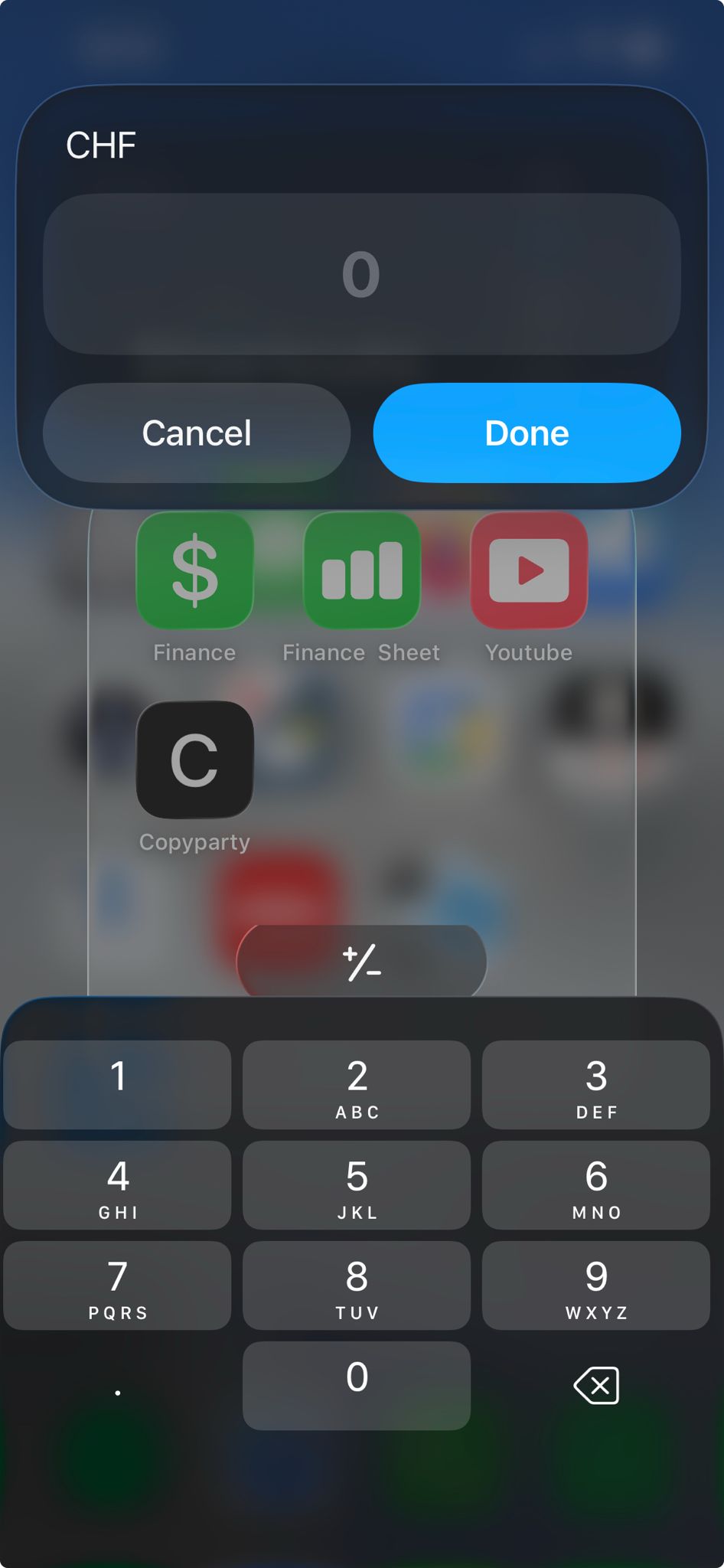
For common tasks like tracking expenses or managing TODOs, a large part is how to make it easy and friction-less to use to incorporate it into your daily life. That is why I want to share not only how I store all my finances, but also how I made it very easy to add expenses from my phone using iOS shortcuts.
Sheets
There are a lot of finance tools. Some self-hosted, some overly expensive, and some with barely any features. But all have a common flaw. They are often extremely inflexible. I want to foremost track my finances in an easy and minimal manner. If at a later point I decide I want to now add a cronjob that, for example, automatically adds my monthly subscriptions, I have to hope that whatever finance tool I'm using already supports subscriptions. And if not, hopefully it's open source so I can maybe contribute the subscription feature or at least hack it together for my personal use. But the subscriptions feature was just one example. There are a bunch of finance tracking apps that already support subscriptions. Replace it with some other feature X that you feel is very important or some graph representation Y that would make your finances so much easier to view. Very quickly you'll reach a point where all the apps that support your desired feature set either simply don't exist, or are way too complicated/expensive for a little personal finance tracking. Such a flexible finance tracking app sounds almost impossible. Luckily there's already a 40 year old solution for simple finance tracking:
It's Excel. Or at least, the whole spreadsheet system introduced with Excel 40 years ago. Of course, I don't use Excel myself though. I want to be able to edit my spreadsheets anywhere and on any device. Google Sheets fills that gap just perfectly for me.
Google sheets allows me to keep track of my finances with minimal effort. If I want a specific type of graph to visualize my spendings, I can simply insert and design the chart however I want. If I want to add a way for my subscriptions to automatically be added, I can simply vibecode a little script and have it trigger on a daily basis (called Apps Script in GSheets). If I ever have the urge to move away from Google Sheets, I can simply download the whole sheets as an excel, ods, or csv file. So I'm not vendor-locked in any way.
Adding entries
Then there's the question of how to insert entries. In theory, I could always open up my sheet and add the entries. Only downside is that Google Sheets takes a while to load. It might be negligible at first, but I know myself enough that this sort of friction will have me stop tracking my finances down the line as I can't be bothered anymore.
Google also provides Google Forms, which allows you to directly add form submissions into a google sheet. And a little undocumented trick is that you can submit form submissions using a GET request, which can be done by basically any sort of tool. Below is a quick guide on how to set it up.
To determine that link:
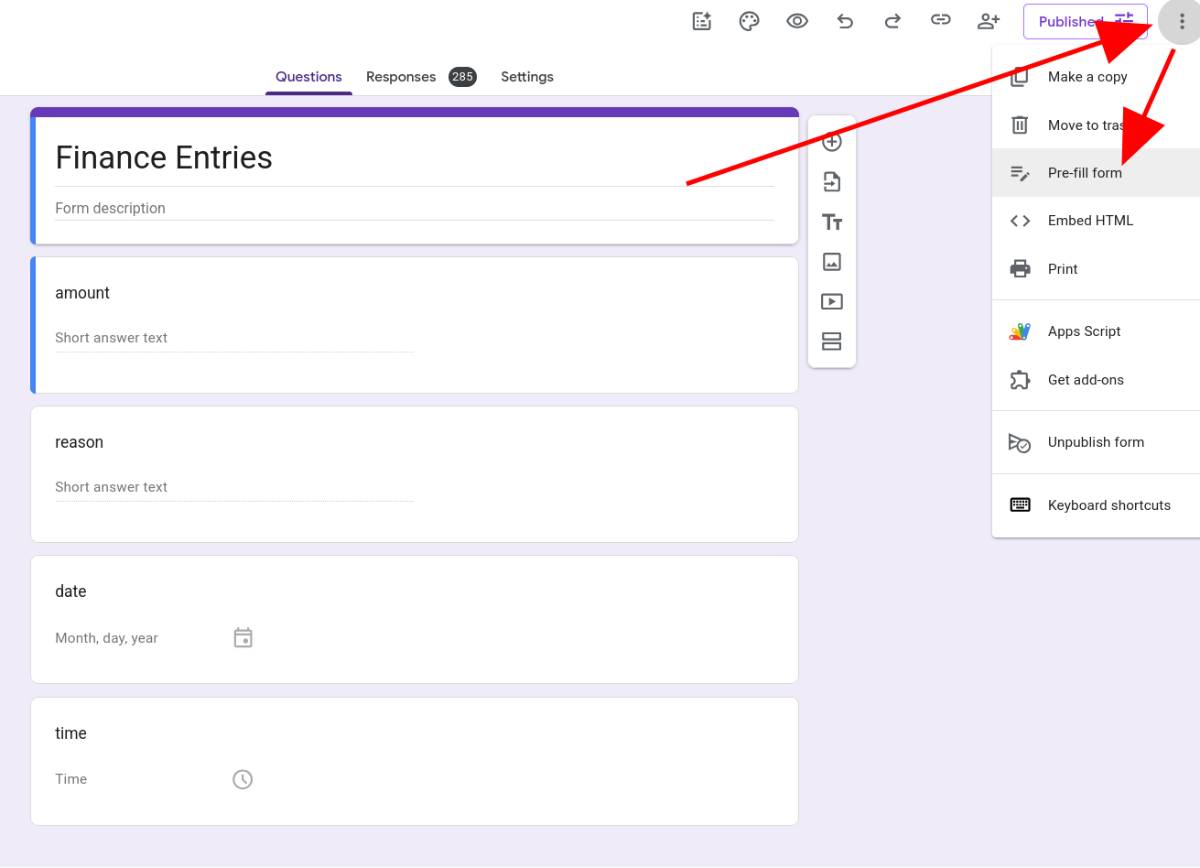
- Create your Google Form. Add any inputs you desire. The actual answer type does not matter. You could also just keep them all as "Short answer text".
- Head to the "Pre-fill form" page.
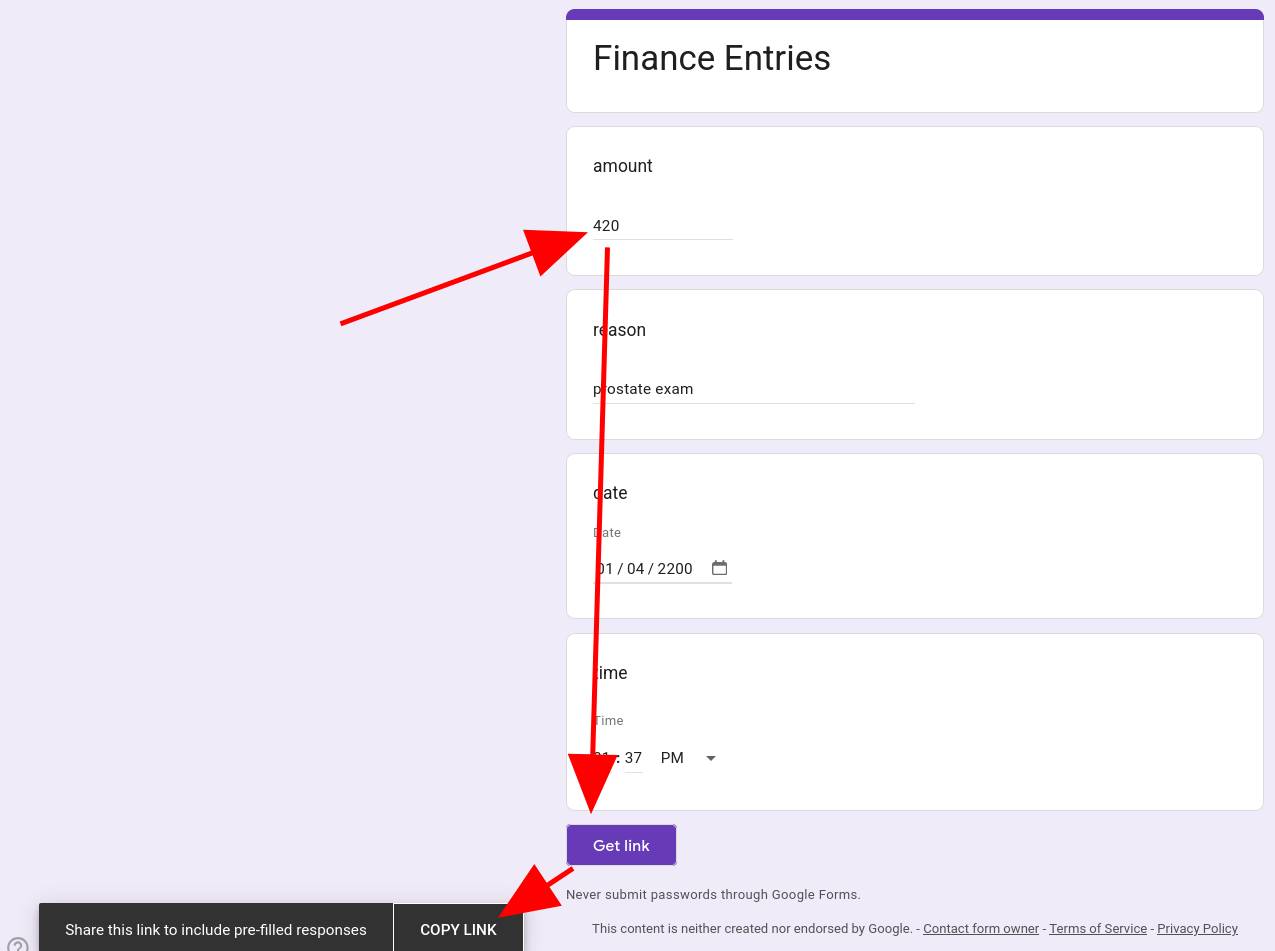
- Enter some arbitrary values.
- Click "Get link"
- Click the "COPY LINK" which gets you a forms link along the lines of (split up into lines to make the components clearer):
https://docs.google.com/forms/d/e/aSBs...OlA /viewform?usp=pp_url &entry.1975411869=420&entry.278177584=prostate+exam&entry.453701871=2200-04-01&entry.816962894=13:37 - The
entry.<id>are what fill in each of the inputs. Now replace the middle/viewform?usp=pp_urlpart with/formResponse?submit=Submit. You should now have:https://docs.google.com/forms/d/e/aSBs...OlA /formResponse?submit=Submit &entry.1975411869=420&entry.278177584=prostate+exam&entry.453701871=2200-04-01&entry.816962894=13:37 - Done! Visiting this in your browser (or sending a GET request to this) will now immediately submit a form entry.
iOS Shortcuts
I use an iPhone, on which you can make use of the iOS shortcuts. I've never really used these before, but you can generally do quite a lot of useful things with them. Whether you actually want to spend a lot of time making these (on mobile) is another question though. The Shortcuts app is a valid contender for the "top 10 most dogwater mobile UX apps". The drag and drop that sometimes breaks in addition with some variables not showing up unless you restart the app make it extremely infuriating to develop. But at least once it works, it works. Not that that is an entirely high bar to reach.
You can download the shortcut here if you want to use it. It requires the google forms URL and the above four entry.ids from above to set up fully. There are multiple ways to launch it. You could create a homescreen icon or a widget on your lockscreen. Or alternatively, you can assign a gesture (like clicking the lock button three times) to launch the shortcut.
As for how I actually use it, I don't have an all too strict system for naming my payments. Luckily I'm not an accountant and it's all just for my own two eyes. If I go to IKEA and buy a green chair for my room, I'd probably add it under "green chair ikea". A small hint so that a few months or maybe a year down the line I can look at my expenses and be reminded of how I spent 200.- for that green clothes hanger in the corner of my room.
And that is how I have my finance/expenses tracking set up using just a Google Sheet for storing all the data, while having a shortcut on my phone to quickly add entries. I've since also created a few more shortcuts, albeit simpler. You can have them trigger when you open an app, so I have one that turns my screen grey when I open instagram, and then makes it colorful again when I close it. I leave the implementation as an exercise for the reader though (btw, the releavnt action is called "Set Color Filters"). Curious if you have any other shortcuts you use.